
Hybrid Cloud & Multi-Region VPC
Connect on-premise hardware to AWS, Azure, or GCP with secure WireGuard/IPsec site-to-site VPN tunnels.


Discover the top virtual machine software for Linux and learn how to properly install a virtual machine with this detailed guide.
Enterprise Cloud Platforms & Hypervisors Supported
Cloud Architecture & DevOps
Scale workloads across private, public, or hybrid environments with automated provisioning, VPC peering, and container orchestration.
Connect on-premise hardware to AWS, Azure, or GCP with secure WireGuard/IPsec site-to-site VPN tunnels.

Dynamic traffic distribution across healthy VM instances with automated health checks and SSL offloading.

Zero-trust IAM role segregation, encrypted KMS keys, private subnets, and bastion host architecture.

Cross-datacenter database clustering and automated block-level snapshots with sub-15 minute RPO/RTO.

Eliminate orphaned volumes, right-size over-provisioned instances, and implement spot instance scheduling.

Production container deployment with GitOps CI/CD pipelines, ingress controllers, and secret management.
Avoid unexpected public cloud bandwidth egress surcharges with flat-rate infrastructure billing.

No noisy neighbors or throttled CPU credits. Dedicated compute capacity reserved 100% for your apps.
Our cloud engineers act as an extension of your development team, ready to deploy code and tune stacks.
Starting at
one-time setup
Deploy Cloud VMStarting at
one-time setup
Deploy HA ClusterStarting at
per environment / month
Subscribe Cloud OpsSide-By-Side
| Feature | HostsCheap | AWS Direct (Unmanaged) | Legacy Hosting Resellers |
|---|---|---|---|
| Hands-On Senior DevOps Support | Included | +$100/mo min | Basic Tickets Only |
| Bandwidth Egress Fees | $0.00 / Flat | $0.09 / GB | Varies / Capped |
| Architecture & Security Review | |||
| Zero-Downtime Live VM Migration | Self-service | ||
| Custom Hypervisor Tuning (KVM/ESXi) | |||
| Monthly Billing Predictability | 100% Fixed | Unpredictable | Hidden fees |
Enterprise compliance frameworks implemented across physical infrastructure, network isolation, and encryption keys.
Customer Stories
“Our AWS bill was spinning out of control. HostsCheap re-architected our EC2 footprint into hybrid compute, cutting our monthly cloud bill by 54% while speeding up response times.”
“Deploying our VMware cluster with their team took less than 48 hours. They migrated our legacy Windows and Linux workloads with zero data loss.”
“Their SRE team alerted and resolved a replication lag issue before our own internal alerts fired. Remarkable monitoring expertise.”
Get reliable virtual machine installation and QEMU virtual machine support from HostsCheap. We offer IT support and web hosting services for your VPS server. Install the best virtual machine software for Linux systems with this comprehensive guide. Installing virtual machines has never been easier!
$300.00 USD One Time Setup Fee
GigID : LIS-VMWI-703 Delivery 04 Days
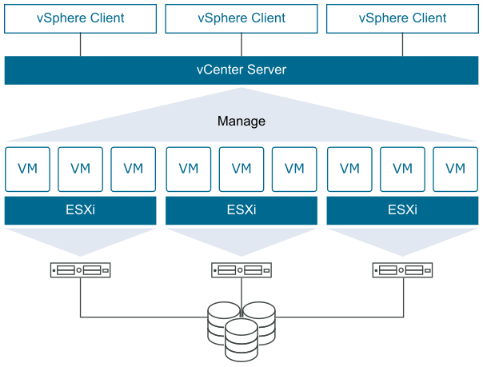
VMware vSphere is the corporate standard for virtualization, and the platform upon which VMware's other solutions are based. It lets you transform data centers into flexible, virtualized infrastructures that can become IT-centered rather than hardware-centric. vSphere provides the services that make up a single solution: CPU, memory, I/O networking capacity, storage (local and remote), and basic fault tolerance. These services let IT administrators provide an infrastructure that can accommodate today's dynamic infrastructures and business requirements.
✅ Installation Any Open Source or cPanel in VPS/DS Server (without Control Panel )
✅ WHMCS Installation
✅ Cron Jobs
✅ Further Security Steps
✅ WHMCS Admin URL Change
✅ WHMCS Admin URL Login IP Restrictions
✅ SSL certificate Free/ Paid Installation
✅ SPF Setup similar with Existing Configuration.
✅ DNS Configuration
✅ DKIM Setup similar with Existing Configuration.
✅ DMARC Setup similar with Existing Configuration.
✅ rDNS Setup.
✅ Spam Filter setup if Requirements!.
Order Support Buy Licence Free Zoom Meeting
$300.00 USD One Time Setup Fee
GigID : LIS-RHEVM-702 Delivery 04 Days
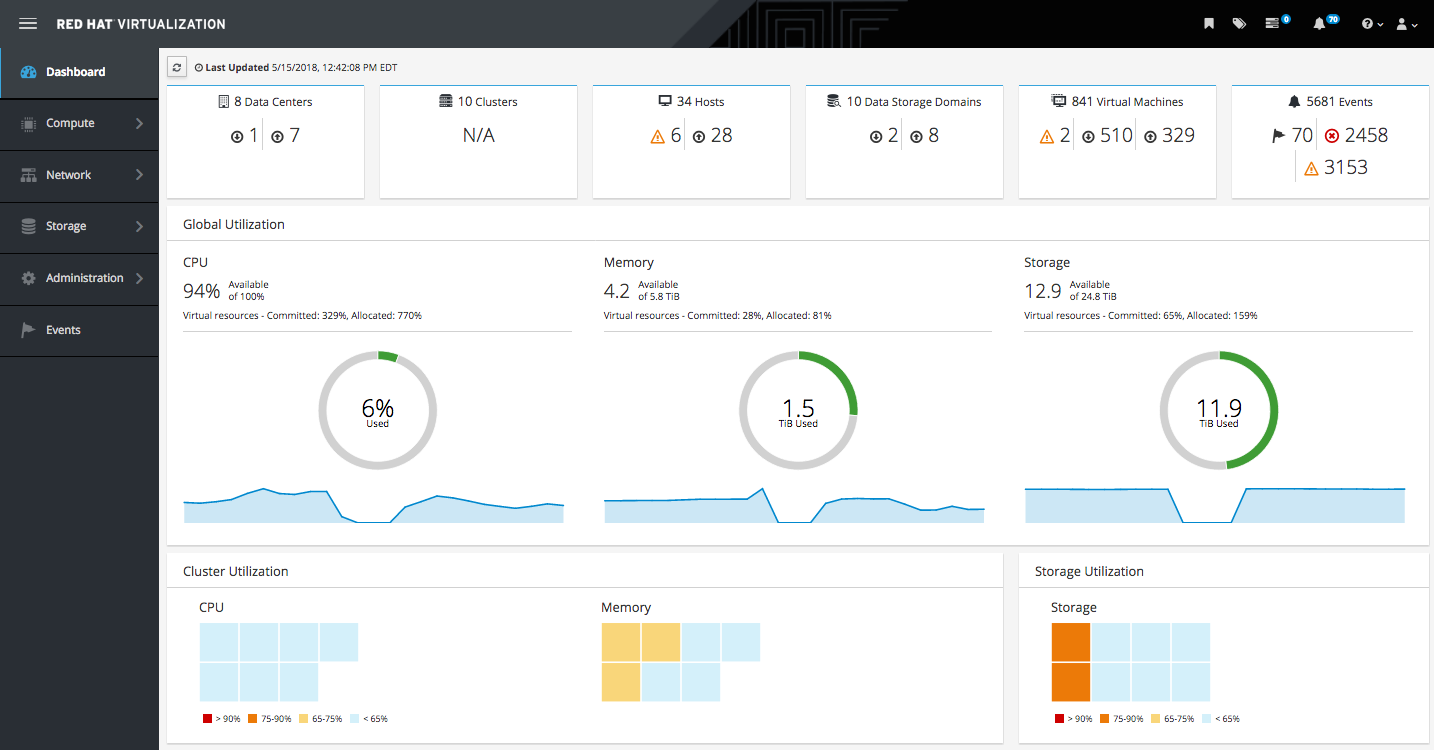
The Enterprise Virtualization Management (RHEV-M) service allows users to deploy and manage Red Hat Enterprise Virtualization. With this service, users can deploy infrastructure clusters that include multiple head nodes in support of virtual machines, manage hypervisors running on physical or host servers as well as virtual servers, and use several guest operating systems within a single system image. Virtually everything in computing has been virtualized—all of the servers a company uses, all of the complex software systems that run on those servers, and the storage where data is stored and retrieved from. Red Hat, Inc., an enterprise software company that provides open source solutions, has virtualization at its core—and is now taking this virtualization to the next level.
✅ Installation Any Open Source or cPanel in VPS/DS Server (without Control Panel )
✅ WHMCS Migration
✅ Cron Jobs
✅ Further Security Steps
✅ WHMCS Admin URL Change
✅ WHMCS Admin URL Login IP Restrictions
✅ Apache or Nginx Web Server Configuration
✅ DKIM Setup similar with Existing Configuration.
✅ DMARC Setup similar with Existing Configuration.
✅ rDNS Setup.
✅ Spam Filter setup if Requirements!.
$300.00 USD One Time Setup Fee
GigID : LIS-KVMIS-701 Delivery 04 Days
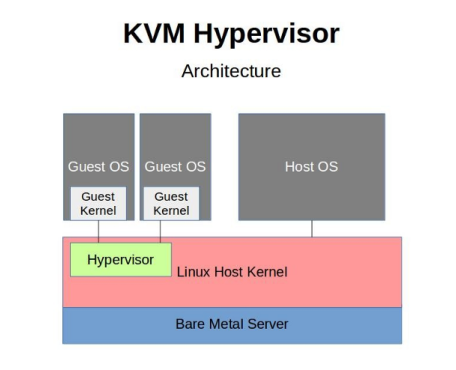
The Kernel-based Virtual Machine (KVM) is an open source virtualization technology built into Linux®. Specifically, KVM lets you turn Linux into a hypervisor that allows a host machine to run multiple, isolated virtual environments called guests or virtual machines (VMs). KVM is part of the Linux kernel, which means it's already standard in most Linux distributions and can be installed with default commands.
✅ Register Private Name Server
✅ Configure ns1.yourdomain.com
✅ Configure ns2.yourdomain.com
✅ Configure ns3.yourdomain.com
✅ Configure ns4.yourdomain.com
✅ Configure Private Name Server In WHM/cPanel
Welcome to our guide on how you can easily set up a virtual machine install service. Instead, you may be a beginner in the area of virtualization or want to make the work of installing much quicker than it is, whatever the case might be, this guide will make sure you go through every step with ease. By the time you finish this, you will learn how to use virtual machines for your work.
Key Takeaways:
In order to successfully implement the virtual machine install service, I find it highly necessary to understand what virtual machines and virtualization are. In this section, we will cover the definition of virtual machines, how they function and some benefits of using them. Understanding these basic concepts will make you ready for the advanced stage of installation and configuration.
Checking Your System Specifications
For any system, it is mandatory to understand the prerequisites before moving on to the process of installing a virtual machine. System International being a virtual machine provider also has its set of requirements that have to be outrun. Follow the steps to assess eligibility.
1. Hardware Assessment - always remember to check that your computer meets the minimum hardware requirements set out by the virtual machine software, this includes the processor, installed RAM memory, and size of installed hard disk space.
2. Conduct a BIOS Check – every PC has BIOS, so open it and check for virtualization support and if it’s enabled. If you don’t find it then look around under advanced or under security if there's any option relevant to the setting.
3. OS Requirements – look for the operating software that the virtual machine program supports, some specific ones may have particular requirements or restrictions related to the version of the operating system.
4. Software Dependencies Verification – as in step one, some configurations may use advanced virtualization settings that may require specific versions of installed libraries, frameworks, or other software on your system. Vice versa in verifying the eligibility, it should also be checked.
After you check for system requirements, the next step will be acquiring the virtual machine’s operating system image that you are planning to install on the virtual machine. An operating system image highlights a file that encompasses the files needed for the desired operating system installation. The operating system image can be obtained in the following manner:
Completing these preparation tasks, you will be ready to move further and begin the process of installing the virtual machine. Checking system compatibility and securing an operating system image is one of the essential activities in order to have a successful installation and functioning of your virtual machine.
When you have completed all the preparations for the install, it is important to know how to find the virtual machine install service. We will present you detailed steps that will guide you in finding the service and the installation process. Selecting The Right Virtual Machine Software You have to know that setting up a virtual machine requires the use of appropriate software which is a very critical step. There are two products that stand out in the market, VMWare Workstation and Fusion. In this chapter, we will contrast these two virtual machine software with other types so that you get suitable one for your projects.
A Comparative Look at VMWare Workstation, Fusion and Others Vmware workstation has been an able virtual machine software with great features and functionalities. Its robust operating capabilities maintained networking, multi O/S operation as well as connections with global cloud. On the other hand, Vmware fusion is marketed to Mac users, who find it easy to integrate into their MAC systems and excel in functionality performance.
When considering the options for using a Virtual Machine software, the choice between VMWare Workstation and VMWare Fusion solely depends on the operating system in use and certain other individual needs. But there are other options for virtual machine software which has various characteristics of their own. Some of the popular alternatives are VirtualBox, Parallels Desktop, and Hyper-V.
However, Operating System Compatibility and Performance Features are Just Some of the Factors Aiming for the Success of Your Project so be sure to Evaluate them at the Start before going for any virtual machine software.
If the virtual machine software is required for working with Windows and Linux then VMWare Workstation seems to be a good option, because it has a rich feature set and extensive support of various devices. However, for Mac users, the choice is VMWare Fusion as it it’s tightly integrated into macOS and runs very well.
It is wise to analyze the requirements of your project and also others like cost, performance, usability, and support before you make the plunge. It is very important to choose the right virtual machine software that fits well within the framework of your project so that it increases your effectiveness and efficiency.
In this part, we will provide guidance as to how you can install a virtual machine without the use of Visual Studio, satisfying your needs in a quick and effective manner. So if you don't have Visual Studio already installed on your VM, this section is for you.
So here we go!
Using CMD For The Installation
Now even though this might seem obvious, installing a VM without Visual Studio does require the use of a command line. So here is what you need to do:
So, with the use of CMD commands you can install how you can set a virtual machine, all while bypassing the requirements for Visual Studio.
So, before we move on installing the commands through CMD, you can also install your virtual machine with the help of 'cmd' and '.net framework installation utility' follow the steps below to do so :
Step 1: Go to your hmm...virtual machine and search '.net framework installation utility'
Step 2: Now, launch the 'utility' you just selected and choose the option where it says virtual machine installation.
Step 3: Provide the necessary information in order to activate and complete the installation.
Another way of installing your virtual machine without Visual Studio is by opening the .NET Framework Installation Utility.
Look at the commands listed in the table above to perform some basic commands you can type in CMD to enable your virtual machine without the help of the Visual Studio program.
This means that command line tools and the use of .NET Framework Installation Utility can also be used to install a virtual machine without having to use visual studio. Complete the tasks in this section to properly install your virtual machine all set for your tasks.
After the installation of your virtual machine, it is important that you tweak the settings in such a manner that its performance will suit your workloads. These settings will allow optimal allocation of resources for your virtual machine as well.
These are the most important things when it comes to setting the virtual machine:
Setting up those features will enable you to fine-tune your virtual machine while ensuring it is capable of meeting the demands of your workloads, applications or any other projects.
Virtual machine install services come packed with features that make the installation process a whole lot easier. Such feature is the Easy Install which decreases the number of steps needed to install and optimizes the process. Thanks to this feature, installation of a virtual machine becomes quick and painless.
If you want to utilize the Easy Install feature, kindly read the following steps:
As you are installing the virtual machine, you will be required to answer certain questions such as which operating system you wish to install, make sure to have the correct information ready.
Using the Easy Install feature the time consuming and tedious process of installing the virtual machine has been made easier. Cutting out redundant parts means you get to conserve both time and energy directing your attention to your work anymore while installing such occurring tedious installations.
The process of setting up file sharing and permissions on your virtual machine is crucial to avoid any hindrance in the integration with local and network resources. This part of the document explains how to allow access to local and network resources and how to set the network for easy integration.
While configuring the virtual machine to share files, it is crucial to assign the relevant permissions to communicate with local and network services seamlessly. In order to allow local access, you must do the following
By following these steps, one can avoid unsmooth file usage, hassle over permissions, and in short mapping the integration whether the services are on the local virtualization machine or on the network.
With the services of virtual machine up and running, knowing how to enable and manage the same becomes imperative. This section will take you through starting the service from the Task Manager and monitoring the service. These tasks are crucial
Schedule a free architectural consultation with our senior cloud infrastructure engineers today.